
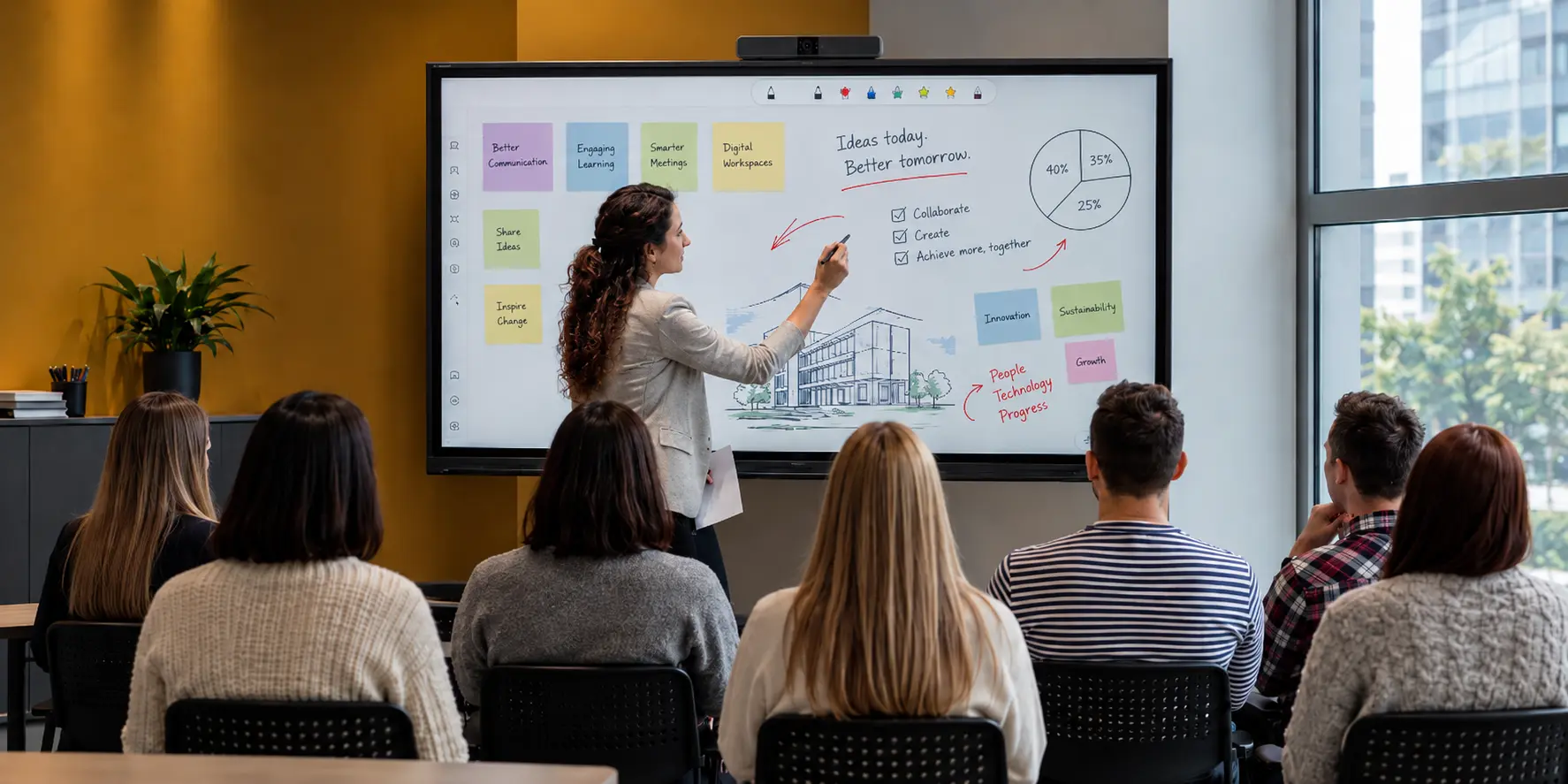
Interactive displays bring presentations, collaboration, teaching and training content onto a large touchscreen.
Phoenix supplies interactive display solutions for businesses, schools and other organisations across South West England. We can help compare screen sizes, mounting, connectivity, video-conferencing requirements and the practical needs of the room and its users.
What an interactive display does
An interactive display combines a large digital screen with touch control.
Users can present content, write or draw on screen, annotate documents and interact with compatible applications. Depending on the setup, the display may connect to a room computer, laptop, mobile device, video-conferencing system or built-in computing platform.
The value comes from making the room easier to use and more collaborative, not simply from installing the largest available screen.
Interactive displays, touchscreens and whiteboards
The terms interactive display, interactive touchscreen, interactive flat panel and digital whiteboard are often used for closely related products.
Unlike older projector-based interactive whiteboards, a modern flat panel has its own bright display and does not rely on a separate projector. This removes shadows from the projected image and reduces the need for lamp replacement or projector alignment.
The most suitable product depends on the room, users and applications rather than the label used to describe it.
Meeting rooms and collaboration spaces
Interactive displays can make meetings more engaging by allowing participants to work directly with documents, presentations, plans and shared ideas.
A meeting-room setup may include:
- laptop presentation;
- wireless screen sharing;
- on-screen annotation;
- digital whiteboarding;
- video conferencing;
- shared access to cloud documents;
- cameras, microphones and speakers;
- touch control of a connected computer.
The system needs to be straightforward for regular staff and visitors. A complicated connection process can waste the first part of every meeting, even when the display itself is technically capable.
Boardrooms and formal presentation spaces
Boardrooms often need a clean installation, strong image quality and dependable switching between different presenters.
Viewing distance, seating layout, table position, room lighting and the placement of cameras and microphones all affect the design. Cable routes and control points can be planned so that the technology supports the room without dominating it.
Where confidentiality matters, wireless presentation and video-conferencing settings can be considered as part of the wider network and security requirements.
Classrooms and education
Interactive displays can support teaching by bringing digital resources, annotation and group participation together at the front of the room.
Education requirements may include:
- clear visibility from different parts of the classroom;
- accurate touch and writing response;
- simple access for teachers;
- durable daily operation;
- compatibility with existing learning platforms;
- sound for video and multimedia;
- suitable mounting height;
- access for pupils with different needs;
- consistent operation across several rooms.
The teaching workflow matters as much as the screen specification. Staff need to be able to start a lesson, open familiar resources and switch between activities without unnecessary delay.
Training rooms and presentation areas
Training environments often combine presentation, demonstration and hands-on participation.
An interactive display can allow a trainer to annotate material, invite participants to contribute and move between slides, websites, documents and video. The setup may also need to support remote attendees through video conferencing.
Screen size, seating arrangement and connection options can be planned around the number of people using the room.
Reception, showroom and shared spaces
A large display can also support demonstrations, visitor information or collaborative work in shared areas.
Where touch is required, the installation needs to account for reach, height and the way people approach the screen. Where the display is mainly used for information, a non-interactive commercial screen may sometimes be a better fit.
Phoenix can help distinguish between an interactive requirement and a straightforward digital display requirement.
Choosing the right screen size
Screen size affects visibility, usability and the physical fit of the installation.
A small meeting room may be well served by a more compact panel, while a large classroom or training room needs a screen that can be read from the back. Bigger is not always better: users also need to reach the interactive area comfortably, and the wall or mobile stand needs to support the equipment safely.
Useful details include:
- room dimensions;
- typical audience size;
- furthest viewing distance;
- seating layout;
- mounting height;
- the type of content being displayed;
- whether users will regularly write or draw on screen.
Wall mounting and mobile stands
Wall mounting provides a fixed, tidy installation and can suit rooms with a consistent layout.
A mobile stand allows the display to move between spaces or be repositioned within a room. This can be useful in flexible training areas, shared teaching spaces and organisations that cannot dedicate a permanent wall location.
The choice needs to account for the screen size, floor surface, doorways, storage, cable management and how frequently the equipment will move.
Connectivity and compatibility
An interactive display may need to connect with laptops, desktop computers, tablets, video-conferencing equipment and the organisation’s network.
Common connections include HDMI, USB, USB-C and network access. Touch control may require a separate data connection as well as the video signal. Some displays also support wireless presentation or built-in applications.
Understanding the equipment already used in the room helps avoid adapters, missing cables and inconsistent behaviour after installation.
Wired presentation
A wired connection remains a dependable option for many rooms.
HDMI can carry video and audio, while USB or USB-C may provide touch control and, on suitable equipment, additional functions through a single cable. The exact capability depends on both the display and the connected computer.
Connection points can be positioned near the presenter or meeting table so that users do not need to reach behind the screen.
Wireless presentation
Wireless screen sharing can make it easier for several people to present without passing cables around the room.
The experience depends on the display, presentation platform, user devices and network environment. Organisations may also need controls over who can connect and whether visitors can present without joining the main internal network.
A wired fallback is often useful even where wireless presentation is the preferred method.
Video conferencing
Interactive displays can form part of a video-conferencing room, but the display alone does not automatically provide a complete conferencing system.
A room may also need:
- a camera;
- microphones;
- speakers or a soundbar;
- a room computer or conferencing appliance;
- suitable software accounts;
- network connectivity;
- controls that are easy for users to understand.
Camera position and microphone coverage are particularly important in larger rooms. Phoenix can help consider how these components work together.
Audio requirements
Built-in speakers may be sufficient for presentations and smaller rooms.
Larger spaces, video conferencing or multimedia use may benefit from additional audio equipment. The room size, background noise, audience position and intended use all influence the result.
Audio planning is best considered at the same time as the display rather than added after users find the room difficult to hear.
Built-in computing and external devices
Some interactive displays include built-in applications or an optional computing module. Others are designed mainly to work with a connected computer.
Built-in features can provide quick access to whiteboarding and basic presentation tools. External computers may be preferred where users need familiar software, central management or specialist applications.
A mixed approach can provide simple everyday use while retaining access to the organisation’s normal systems.
Accessibility and user reach
The display needs to work for the people using it.
Mounting height, screen size and furniture layout affect who can reach the interactive area. Glare, room lighting, text size and colour contrast affect visibility. Audio and video-conferencing equipment also need to support participants throughout the room.
Considering accessibility during planning usually produces a better experience for everyone.
Sharp and multi-brand options
Sharp interactive displays may form part of the available options.
Phoenix can also consider other suitable equipment where the room, required functions or existing technology point to a different solution. The recommendation begins with the intended use and environment.
Installation and user readiness
A complete project can include delivery, mounting, cable planning, connection to the required devices and basic guidance for users.
Before installation, useful checks include:
- wall construction or mobile-stand requirements;
- power and network availability;
- cable routes;
- access into the building and room;
- the laptops or computers being connected;
- conferencing and audio equipment;
- mounting height and viewing position.
After installation, users need to know how to start a session, connect a device, use touch features and return the room to a ready state for the next person.
Planning several rooms
Organisations installing displays in several rooms may benefit from a consistent approach.
Using similar connection methods, controls and user instructions can reduce confusion and simplify support. The screen size may still vary according to each room, while the overall user experience remains familiar.
Phoenix can help review several spaces and plan a phased installation where appropriate.
Information that helps us begin
Useful starting details include:
- the type and size of room;
- the main use, such as meetings, teaching or training;
- the usual number of users;
- wall mounting or mobile use;
- the computers and devices that need to connect;
- wireless presentation requirements;
- video-conferencing needs;
- any existing display or audio equipment;
- the installation postcode.
You do not need to choose a screen model before contacting Phoenix.
Serving organisations across the South West
Phoenix supplies interactive display solutions across Cornwall, Devon, Dorset, Somerset, Wiltshire, Gloucestershire, Bristol and Bath.
Projects can involve one meeting room, a classroom, a training space or several rooms across different locations.
Frequently asked questions
Is an interactive display the same as an interactive whiteboard?
The terms are often used interchangeably. Modern interactive displays are flat panels with their own screen, while older interactive whiteboards often relied on a separate projector.
Do we need touch capability?
Not always. Touch is useful for annotation, whiteboarding and direct interaction. A standard commercial display may be enough where the screen is used only for presentation or information.
What screen size do we need?
The room dimensions, viewing distance, content and number of users all matter. Phoenix can help compare suitable sizes from these details.
Can users connect wirelessly?
Many systems support wireless presentation, subject to the selected display, user devices and network environment.
Does the display include video conferencing?
Some products include conferencing features, while others need a separate camera, microphone, speakers or room system. The complete requirement can be planned together.
Can an interactive display be moved between rooms?
Yes, where it is installed on a suitable mobile stand and the building layout allows safe movement.
Are interactive displays suitable for schools?
Yes. They can support teaching, annotation, multimedia and group participation when selected and installed around the classroom environment.
Can Phoenix supply Sharp interactive displays?
Yes. Suitable Sharp display options can be discussed alongside other available solutions.
Can you install displays in several rooms?
Yes. Phoenix can review several spaces and help create a consistent installation plan.
Do we need an integrated computer?
Not necessarily. The display may work with laptops, room computers or built-in applications. The best approach depends on the software and management requirements.
Discuss your room and use case
Tell us about the room, the people using it and what you want the display to help them do.